As an Amazon Associate, we earn from qualifying purchases. Some links on this site are affiliate links at no extra cost to you. Our recommendations are based on thorough research and editorial judgment.


A Simple Photo Workflow: Shoot, Backup, Edit (Beginner Friendly)

To create a simple photo workflow, we should first focus on capturing images. This means checking our camera settings and using dual memory cards for backup. After shooting, we need to back up our photos using the 3-2-1 strategy, which involves having three copies on different devices, with one stored off-site. Once backed up, we organize our images in editing software and edit efficiently. Finally, we export final images while ensuring data integrity. By following these steps, we can streamline our photography process. Further details await us.
Key Takeaways
- Use dual memory cards to capture images simultaneously, providing an immediate backup during your shoot for peace of mind.
- Follow the 3-2-1 backup rule by keeping three copies of your photos on two different media types, with one off-site for safety.
- Organize photos in dedicated folders with a consistent naming system to simplify management and retrieval during editing.
- Utilize Adobe Lightroom for efficient editing, leveraging keyboard shortcuts and presets to speed up your workflow.
- Export final images in appropriate resolutions for different uses, ensuring quality while maintaining copyright information.
The Importance of a Structured Photography Workflow
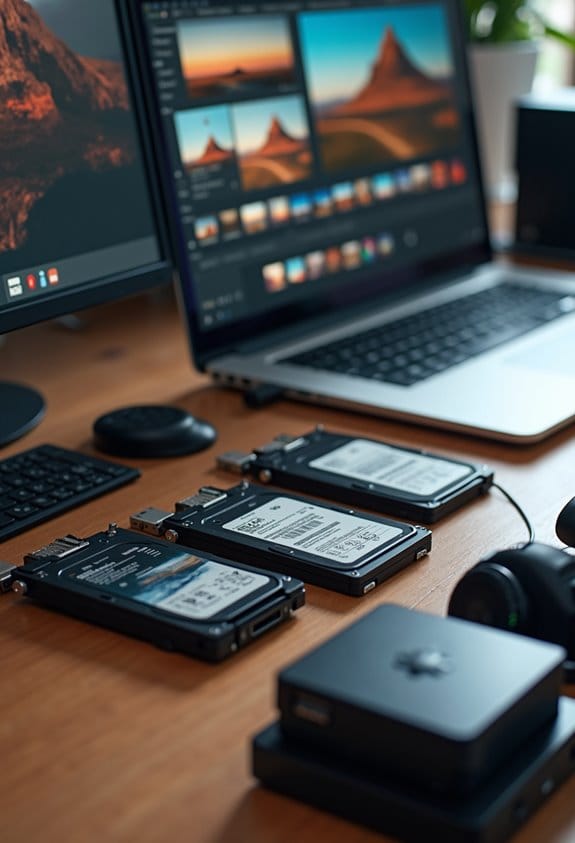
You know, when we think of photography, it’s tempting to just focus on snapping beautiful pictures. But let me tell you, having a structured photography workflow really makes a difference in how things turn out. When you follow a clear process from the initial planning all the way to delivering the final images, you’re less likely to skip over the important stuff. For instance, if you lay out a timeline for your shoot, you can ensure everything from the location scouting to client consultations is covered, making the whole experience smoother and more enjoyable for everyone involved.
And don’t underestimate the importance of backing up your work! After importing your files, take a moment to organize them right away. This simple step can save you a ton of stress later on. Just imagine if you accidentally lost all your photos because they were a jumbled mess on your hard drive. Including a step to save edited images and keeping originals safe can prevent that heart-stopping moment of panic.
Having a well-defined workflow isn’t just about keeping things tidy; it’s like having a map guiding you through the entire process. It helps you stay organized and use your time wisely, which we could all use more of, right? Plus, customizing your workflow means you can tweak it to fit your style and preferences, making it even more effective over time. Regular maintenance of your equipment with proper tools such as a camera cleaning kit also ensures that your gear performs at its best throughout your workflow. This is just the beginning of understanding how structure can enhance your photography experience. We’ll explore some practical tips for crafting your own workflow next!
Step 1: Capturing Your Images

When it comes to capturing stunning images, there’s a lot to keep in mind to ensure your shoot goes smoothly. One great tip is to use two memory cards at the same time. This way, you create a backup on the spot, which helps protect your precious photos from being lost. I recommend using reliable memory cards, like Sony Tough UHS2 SD cards, since they’re known for their durability and quick speeds.
Before you start snapping away, double-check your camera settings to make sure they’re just right for your shooting conditions. For instance, if you’re shooting outdoors on a sunny day, adjusting your white balance can really help your colors pop. Don’t forget to organize your gear ahead of time—having everything in order will save you a lot of hassle during your shoot.
Also, keep an eye on your battery life and storage space. It can be a real downer to run out of juice or memory halfway through a shoot. If you’re using smaller capacity cards, think about rotating them out regularly to manage your files effectively. That way, you can focus on capturing those amazing moments without interruptions! Choosing memory cards with at least 64GB capacity is a good rule of thumb for most high-resolution photography needs. Ready to explore the next step in your photography journey?
Step 2: Implementing a Backup Strategy

You know how important it is to keep your precious photos safe, right? Implementing a solid backup strategy can make all the difference. A great way to do this is by following the 3-2-1 backup rule. Essentially, you want to have three copies of your images—two stored on different types of media, like an external hard drive and cloud storage, and one kept off-site, just in case something happens to your home or office.
For example, if you take pictures at an event, consider using a camera with dual memory card slots. That way, you can save the same image to both cards simultaneously, giving you immediate peace of mind. Once you transfer your photos to your computer, it’s smart to back them up right away. Don’t wait! Regularly checking that your backups are working correctly helps you avoid nasty surprises down the road.
Creating a routine for these steps not only streamlines your workflow but also takes the stress out of the process, so you don’t end up procrastinating. Once you’ve set this up, you can focus on capturing even more amazing moments! What’s next is learning how to organize those photos so you can find them easily whenever you want. Using high-performance UHS-II SD cards can enhance your workflow by ensuring fast and reliable data transfers during the shooting and backup process.
Choosing Between Local and Cloud Storage
When it comes to choosing between local and cloud storage for our photos, it’s important to weigh the pros and cons of each option. Local backup solutions, like external hard drives, offer quick access and the convenience of being offline, which is perfect when you want to quickly back up your newest vacation photos. However, they do come with risks, like theft or accidental drops. Imagine losing your treasured family images just because your hard drive took a tumble—it’s a nightmare!
On the flip side, cloud storage services like Google Drive and Dropbox provide a secure way to keep our photos safe, plus we can easily access them from anywhere. The catch? They can have restrictions on storage size and may be a bit slower when you’re uploading a ton of pictures. For instance, if you decide to back up your entire album from a recent trip, you might find yourself waiting longer than expected, especially if your internet connection isn’t great.
To keep your photos safe, I recommend a hybrid approach. This means using both local and cloud storage. Following the 3-2-1 backup rule can really help here: have three copies of your data on two different types of media, with one of those copies kept in the cloud. And don’t forget to regularly check your backups; it’s just like checking in on your plants—if you don’t keep an eye on them, they might not thrive! Now, let’s explore how to organize those backups effectively. For photographers who also shoot videos, considering 4K video capabilities when choosing storage options is essential due to the larger file sizes involved.
Organizing Your Photos in Editing Software
You know, organizing our photos in editing software can really change the game when it comes to managing and accessing our images. If you’re using Adobe Lightroom, one of the first things I recommend is to create a clear folder structure. For example, you could organize your photos by event, like “Family Reunion 2023,” or by date, so you can find them in a snap later on.
Another tip is to adopt a consistent file naming system when you import your photos. Think about including the shoot name, the date, and maybe some sequential numbers—like “2023-03-15_Family_Reunion_001.” This simple step makes it so much easier to search for specific photos down the line. Plus, using keyword tags allows you to label your images based on their content, like “beach,” “wedding,” or even the weather conditions—anything that can help you locate what you need quickly.
To keep your workflow efficient, consider rating your photos using a star system. This approach streamlines the culling process, making it easier to filter out the best shots for editing. And don’t forget about backups! Regularly saving your organized library both locally and in the cloud keeps your work safe and accessible whenever you need it.
Using a multi card reader can speed up transferring large batches of photos directly from your camera cards into your organized folders, saving time and effort.
As you start implementing these tips, you’ll find that your photo management becomes smoother, which frees you up to focus more on the fun part—editing and enhancing those amazing moments! Got any specific projects you’re working on?
Tips for Efficient Image Editing
Hey there! So, when you start editing photos, having a clear structure can really make a difference in how quickly you get things done. I always recommend organizing your images into well-named folders. That way, when you’re in the zone, it’s super easy to find exactly what you need without wasting time. For quick edits, using software like Adobe Lightroom is key; it lets you play around with presets and adjust things like exposure and color balance easily.
If you have a bunch of photos from the same shoot, batch processing is a lifesaver—it allows you to apply the same edits to multiple images at once. Just think about how much time you’ll save not having to adjust each one individually! And don’t forget to regularly save your work; it’s always a good idea to keep versions, just in case you want to go back later.
One more tip: get familiar with keyboard shortcuts! They can really speed up your editing process. For instance, using a shortcut to crop instead of hunting for the tool in the menu can save a few precious seconds which add up over time. With these practices, you’ll find that editing becomes much smoother and more enjoyable. Now, let’s talk about some creative techniques that can really bring your images to life!
Also, understanding your camera’s image sensor quality can help you better anticipate how much adjustment your photos might need during editing.
Exporting Your Final Images
Exporting your final images is such an important part of our photo workflow. It’s how we make sure our hard work actually reaches the people who want to see it—and in the best quality possible! Think of it this way: when you’re preparing photos for social media, you’ll often want to shrink the file size a bit so that they load quickly, but you still want them to look great. You can do this by adjusting the resolution and using JPEG compression wisely.
Another thing to keep in mind is the metadata. It’s smart to strip away any unnecessary information to keep your clients’ privacy intact, but don’t forget to keep your copyright info intact—that way, everyone knows whose work it is. Organizing your exported files can also save you a lot of headaches later. For example, you might create a folder called “Final Exports” and then sort them by date and project—super handy!
Lastly, consider saving two versions of each image: one high-quality version for print and a low-res copy for online sharing. This way, you have backups and can use the right version depending on where you’re uploading or displaying your work. With these tips, you’ll feel more confident about sharing your photos! Now, let’s chat about the next steps in ensuring that your images get the attention they deserve.
Using cameras with built-in Wi-Fi can also simplify the transfer process, allowing you to share images instantly from the camera to your device or social media.
Ensuring Long-Term Data Integrity
Hey there! You know, while it’s super fun to capture and edit those perfect photos, we shouldn’t forget about ensuring their long-term data integrity. It’s like taking a picture of a beautiful sunset but losing it because of a computer crash—such a bummer! So, here’s a simple way to protect your images: use the 3-2-1 backup strategy. This means keeping three copies of your photos, using two different types of storage like an external hard drive and a cloud service, and making sure one copy is stored somewhere off-site, like a safety deposit box or a friend’s house.
Regularly checking your backups is just as important. For instance, every few months, try restoring a file from your backup to make sure it’s still there and not corrupted. It’s like going through your winter clothes before the season starts to make sure everything fits and is in good condition. Plus, setting up clear folder structures for your photos makes it way easier to find what you’re looking for if you ever need to restore something. Oh, and automation is your friend—using tools that back up your files automatically can help reduce those pesky human mistakes.
Lastly, don’t forget to periodically review your backup plans. Technology changes fast, and so should your methods for keeping your data safe. By staying proactive, you ensure that those precious memories remain intact for years to come! Speaking of which, using consistent color temperature ranges in your lighting setup can also improve the quality of the photos you organize and preserve. Let’s chat about some efficient ways to organize your photos so you can find them at a moment’s notice.
Continuing Your Photography Journey
Continuing our photography journey is all about keeping that passion alive through regular practice. You know, getting out there with your camera as much as you can really helps to sharpen your skills and spark creativity. Think about setting aside a weekend afternoon just to shoot around your neighborhood or at a local park. It’s amazing how different lighting or the time of day can totally change your shots!
Joining online photography communities or local clubs can be super helpful too. You get to share your work and receive constructive feedback from fellow photographers who can offer fresh perspectives. Plus, experimenting with different photography styles—like trying out portrait photography one week and landscape the next—can really give your skills a boost and help you find what you love most.
Don’t forget about the editing side of things! Taking a few hours to watch some tutorials on Lightroom or Photoshop can drastically improve the look of your photos. Maybe try editing a recent shot to see how a few tweaks can bring it to life? And if you’re looking for more motivation, setting up a personal project like a 365-day photo challenge could keep your camera-clicking journey exciting. Just make sure to back up your images regularly so they’re safe for you to enjoy later.
Consider investing in cameras with advanced autofocus systems to improve your capturing experience. So, what do you think? Ready to get started with a new project or a photo walk?
Frequently Asked Questions
What Equipment Do I Need to Start Photography as a Beginner?
To start photography, we’ll need a good camera, various lens types, and essential accessories like a tripod and extra batteries. Let’s remember beginner tips, like practicing regularly to improve our skills and confidence!
How Do I Choose the Right Camera Settings for Different Situations?
To choose the right camera settings, we need to visualize each shot. In varying lighting conditions, we adjust the exposure triangle—aperture, shutter speed, and ISO—using appropriate shooting modes to capture stunning images.
Can I Edit Photos on My Smartphone?
Absolutely, we can edit photos on our smartphones! With various photo editing apps available, we can enhance smartphone image quality. Plus, using mobile photography tips makes our editing process easier and more effective.
How Often Should I Back up My Photos?
We should back up our photos weekly to guarantee we don’t lose precious memories. Cloud storage options like Google Drive or Dropbox work well, but external drives offer extra security and peace of mind, too.
What File Formats Should I Use When Exporting Images?
We should always consider JPEG for its advantages in smaller file sizes and compatibility. However, using RAW allows for better editing flexibility. Let’s pay attention to our output settings for ideal results in our projects.