As an Amazon Associate, we earn from qualifying purchases. Some links on this site are affiliate links at no extra cost to you. Our recommendations are based on thorough research and editorial judgment.


Exporting Photos for the Web: How to Keep Images Sharp

When exporting photos for the web, we should aim for sharpness without sacrificing speed. First, we need to resize our images to around 600 pixels wide and a resolution of 72 ppi, which helps maintain clarity. Using JPEG format is best for balancing quality and file size. We can sharpen images using the Unsharp Mask with careful adjustments. By organizing our files properly, we can also make future projects easier. There’s more we can explore to optimize our images effectively.
Key Takeaways
- Set resolution to 72 ppi when exporting images for the web to balance quality and loading speed.
- Resize images to an optimal width of around 600 to 1000 pixels for faster loading times.
- Use JPEG format to achieve a good compromise between image quality and file size.
- Apply the Unsharp Mask filter in Photoshop for enhancing sharpness without causing graininess.
- Organize exported images in clearly labeled sub-folders to streamline workflow and retrieval.
Understanding Image Resolution and Quality

Hey! Let’s chat about image resolution and quality, especially when it comes to putting photos on the web. You see, image resolution is all about how many pixels there are in each inch of your image. For most web uses, 72 pixels per inch (ppi) is the sweet spot. This helps ensure that your images still look sharp without blowing up the file size.
For instance, if you have a photo that’s 1400 pixels on the long side, while it might look great, it also means a larger file that could slow down your website. You can keep the same width and height but tweak the resolution in something like Photoshop. In there, if you use the “Export As” option, you can easily adjust the dimensions and find the right balance between quality and file size. It’s all about getting those photos to look fantastic without compromising your site’s performance. Regular use of camera cleaning kits can further enhance image sharpness by maintaining lens clarity.
The Importance of Proper Image Resizing

Hey there! So, let’s chat about the importance of proper image resizing. It’s really key to ensuring our web pages not only load quickly but also have that polished, professional look we all want. Think about it: when images are way too big, they can really bog down loading times, which is super frustrating for anyone trying to browse your site. For instance, if you’re posting a blog, aiming for an image width of around 600 pixels can make a significant difference.
Now, let’s talk resolution. Keeping it at 72 pixels per inch strikes a great balance between quality and file size. This way, your images will look crisp without weighing down your site. Oh, and don’t forget to apply some sharpening adjustments after resizing—this helps avoid that pesky softness or blurriness that can creep in. Also, a little tip: it’s best to avoid scaling down larger images after you’ve uploaded them. Doing so can really hurt the sharpness and overall quality. Using images with higher megapixel resolutions, such as those captured by 8K video cameras, can provide more flexibility when resizing for web use without losing detail.
Recommended Products

Direct Streaming Interface with 12G-SDI In/Out
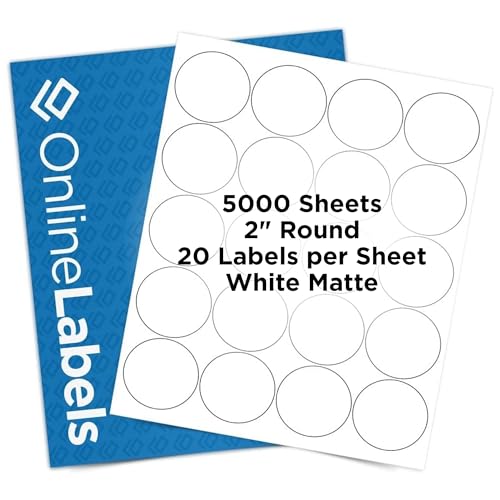
Blank 2 inch Round Labels - printable medium white circle labels, 20 labels per sheet, 200 blank labels total - compatible with inkjet and laser printers

√ Tattoo Version of Phomemo M08F Portable Printer: Phomemo team has developed printers for tattoo stencil printing that utilize advanced thermal technology to produce high-definition, precise patterns and lines. No ink required, no need to deal with clogging or cleaning issues. (Note: This tattoo printer is specifically designed to print simple and one-color patterns).
Step-by-Step Guide to Resizing in Photoshop

Resizing images in Adobe Photoshop is easier than you might think! So, let’s walk through the steps together. First, head over to the Image Menu and click on “Image Size.” Here, you’ll want to set the width to 600 pixels for your blog posts. Don’t stress too much about the height; just keep an eye on the aspect ratio so your images don’t end up looking stretched.
Next, make sure the resolution is set to 72 pixels per inch. This resolution is perfect for the web and helps the images load quickly. One thing to remember is to uncheck the Resample option. If you leave that checked, you might accidentally change how many pixels your image has, which is not what we want!
Once you’ve got everything adjusted, go ahead and save your image. Use the “Save for Web and Devices” option and select JPEG format. A good target for file sizes is between 100K and 150K; this keeps your images looking sharp without slowing down your page. It’s all about striking that balance!
And that’s pretty much it! With these simple steps, you’re set to enhance your blog posts with clear, optimized images. Remember, ensuring accurate color calibration during editing helps maintain true-to-life colors for a professional finish. Ready to tackle the next task? Let’s talk about editing and enhancing those photos to make them shine!
Recommended Products
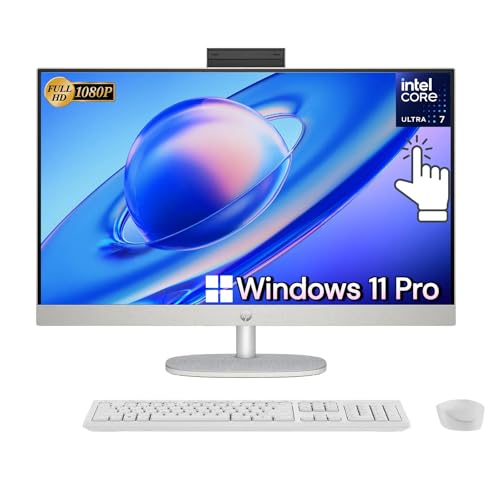
🪐𝙋𝙤𝙬𝙚𝙧𝙛𝙪𝙡 𝙋𝙚𝙧𝙛𝙤𝙧𝙢𝙖𝙣𝙘𝙚 - The HP 27" Full HD Touch-Screen All-in-One with adjustable height is equipped with the latest Intel Core Ultra 7 processor, delivering powerful and responsive performance to boost your productivity. Experience lightning-fast speed while seamlessly editing, sharing, and enjoying fantastic entertainment

Copilot+ PC with Advanced AI Capabilities - Experience the future of productivity with Copilot+ PC, powered by AI-enhanced features that boost performance, security, and privacy, transforming the way you work and create.
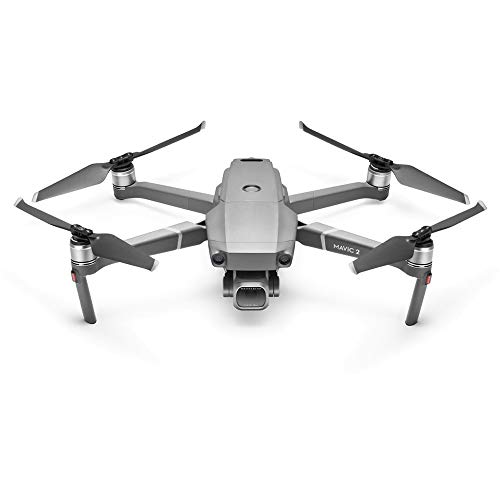
Equipped with a Hasselblad L1D-20c camera with a 20MP 1” CMOS Sensor, the Mavic 2 camera drone lets you capture gorgeous aerial shots in stunning color detail.
Techniques for Sharpening Images
Hey there! Let’s chat about sharpening images, which is super important for making your photos pop online. One of the best ways to do this in Adobe Photoshop is by using the Unsharp Mask filter. It might sound a bit funny, but trust me, it’s not as complicated as it seems!
When you open that filter, try setting the Amount to somewhere between 30% and 60%. This is where you’ll tell Photoshop how much to adjust the sharpness. Keep your Radius at 1.0 pixels and set the Threshold to 0 for a start. You really want to make these adjustments while zoomed in to 100%. This way, you can see exactly how sharp the image is, avoiding that nasty graininess that can happen if you overdo it.
Once you resize your image to its final size, you can play around with selective sharpening using layer masks. This is a handy way to enhance specific sections – like those beautiful flowers in your garden shots – without affecting the rest of the image. Take the time to experiment with the sharpening amounts; you’ll find that what works for a sunset photo might not be the same for a portrait. Keep adjusting until you find that sweet spot, and you’ll be well on your way to creating stunning, sharp images! Using proper lighting techniques, such as a ring light flash, can also significantly improve image clarity and detail in your photos.
Export Settings for Optimal Web Use
Hey there! So, let’s chat about exporting images for the web. It’s really important to strike that sweet spot between quality and file size. For most web use, you’ll want to set your images to about 1000 pixels wide on the longest side. This size is pretty perfect—it keeps your images looking sharp without making them take forever to load.
When it comes to file format, JPEG is a solid choice. Aim for high quality, which usually keeps the file size in the ballpark of 100K to 150K. Using the sRGB color profile is a must too! It ensures that what you see on your screen matches what others will see on theirs. And one tip: start with minimal compression on your images. This way, you avoid compromising the quality, making sure your pictures still pop.
Oh, and if you’re using Photoshop, don’t skip the “Save for Web and Devices” option. It’s designed to help you tweak your settings for the best web performance. Also, consider the benefits of cameras with high-resolution sensors to start with sharp, detailed images for exporting. Once you have those details down, you’ll be well on your way to sharing stunning visuals online without sacrificing speed!
Recommended Products

Used in conjunction with other members of the L-Mount Alliance, the L lens mount is a versatile interface with a mount diameter of 51.6mm and a flange distance of 20mm for working with a broad range of optics.

Leica Q2 digital camera (Monochrom)

Leica Q3: A groundbreaking digital camera renowned for its innovative features and performance, making it a top choice among photographers
Testing Images Across Different Devices
Hey there! Have you ever thought about how important it is to test images across different devices? It’s fascinating how clarity and sharpness can change quite a bit depending on screen resolution. For instance, a picture that looks stunning on your smartphone might appear blurry on a larger 4K display. That’s why testing images is key—ensuring they look great on every device.
When uploading images for a website, try to stick to the fixed size requirements. This way, you won’t have to worry about the site stretching or shrinking them and compromising quality. Even though responsive web design can adjust images automatically, it doesn’t always guarantee they’ll look sharp. For example, if you upload a low-resolution image, it might turn into a pixelated mess on larger screens.
Don’t forget to check how images appear on various browsers too. Colors and sharpness can differ from one browser to another. By regularly testing images on both mobile and desktop devices, you can make sure users enjoy a consistent visual experience, no matter what platform they’re on. This simple practice goes a long way in creating a polished look for your content. Next, let’s talk about the best tools to help with this testing!
Also, understanding the role of sensor resolution in image quality can help you select the right photos that retain sharpness across different screens.
Best Practices for Image Management and Optimization
If you want to manage and optimize images for the web effectively, it’s all about getting a few key practices right. First off, resizing images to a maximum width of about 1024 pixels is crucial. This not only helps them look sharp on screens but also makes them load faster, which is a big plus for user experience.
Now, when you save your images, use Adobe Photoshop’s “Save for Web” option. This feature allows you to select JPEG format and aim for file sizes between 100K-150K. This balance keeps your images looking great without weighing down your website. Don’t forget to set the resolution to 72 ppi; it’s the standard for web images and helps ensure they display well without getting too blurry.
After you’ve resized, a little selective sharpening goes a long way. Just be careful, as too much can introduce a grainy look, which nobody wants. Lastly, think about organizing your exported images into sub-folders. This makes it so much easier to find what you need later on, saving you time and stress.
Choosing the right tools for your workflow, such as those with quick release features, can greatly enhance efficiency when managing large batches of images.
Recommended Products

Ultra-Light, Palm-Sized Foldable Design - Compact and foldable, this palm-sized drone slips easily into a pocket and offers 42GB of internal storage for uninterrupted flying [7].
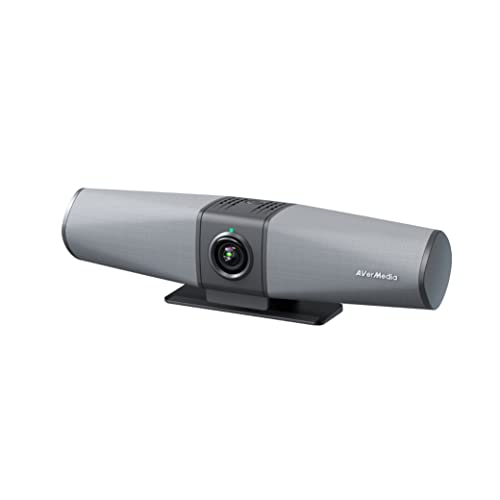
ONE WIRE CONNECTION With a Type-C cable, the Mingle Bar connects everything you need to start your meeting quickly and effortlessly (screen, webcam, hands-free calling, wired network).

Two-sided scanning: The Brother Image center high-speed desktop document scanner can scan single or two-sided documents in a single pass at up 35 ppm(1).
Frequently Asked Questions
How to Export an Image Without Losing Quality?
To export images without losing quality, we should use effective image compression techniques, follow resizing best practices, and manage color profiles carefully. Keeping these factors in mind helps us maintain sharpness and clarity while optimizing file sizes.
How Do I Optimize an Image for Web Without Losing Quality?
To optimize an image for web without losing quality, we should use image compression techniques, focus on file size reduction, and pay attention to resolution considerations, aiming for a balance between clarity and efficiency.
What Is the Best Format to Save Images for Web?
For web images, we think JPEG’s advantages shine for photos, while PNG’s benefits come in handy for transparency. GIFs are great for simple animations too. Let’s choose the right format for our needs!
How Do I Make My Photos More Sharp?
Like a sculptor chiseling away stone, we can enhance our photos’ sharpness through image editing. By employing sharpening techniques and adjusting photo resolution, we achieve clarity that captures attention without compromising quality.